How to use the fingerprint scanner on the Galaxy S10
Important Note: The information on this page is for Hong Kong products only. Models, sequences or settings will vary depending on location and/or where the product had been purchased. To be redirected to your local support page please click here.
The S10 and S10+ come with a secure Ultrasonic Fingerprint Scanner which is located on the front screen.
The sensor on the S10e is intuitively located on the Power key, making it easier than ever to unlock your phone.
The S10 and S10+ come with a built-in fingerprint recognition sensor at the bottom centre of the screen, allowing you to quickly and conveniently unlock your phone.
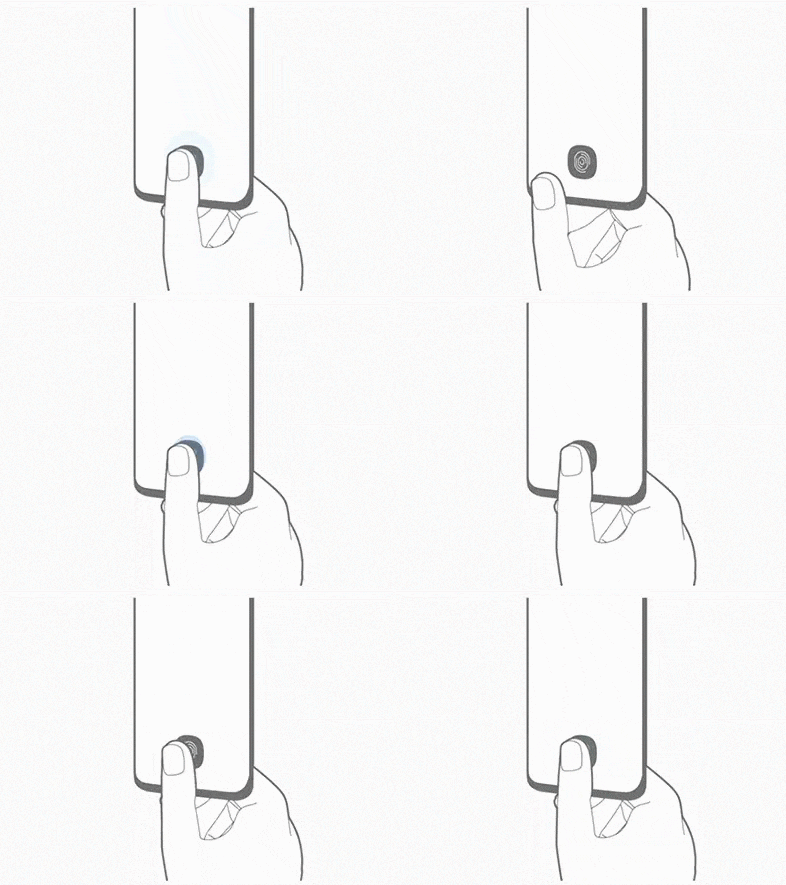
Follow the steps below to register your fingerprint:
Please note: The scanner may struggle to recognise your fingers if they are too wet or too dry, for example in very cold weather conditions. Ensure that the fingerprint sensor area is not scratched or damaged by metal objects such as coins, keys, pens and necklaces. Press the screen so that your fingertip spreads over the wide surface of the fingerprint recognition area.
The Power key on the S10e has a built-in fingerprint recognition sensor, allowing you to quickly and conveniently unlock your phone.
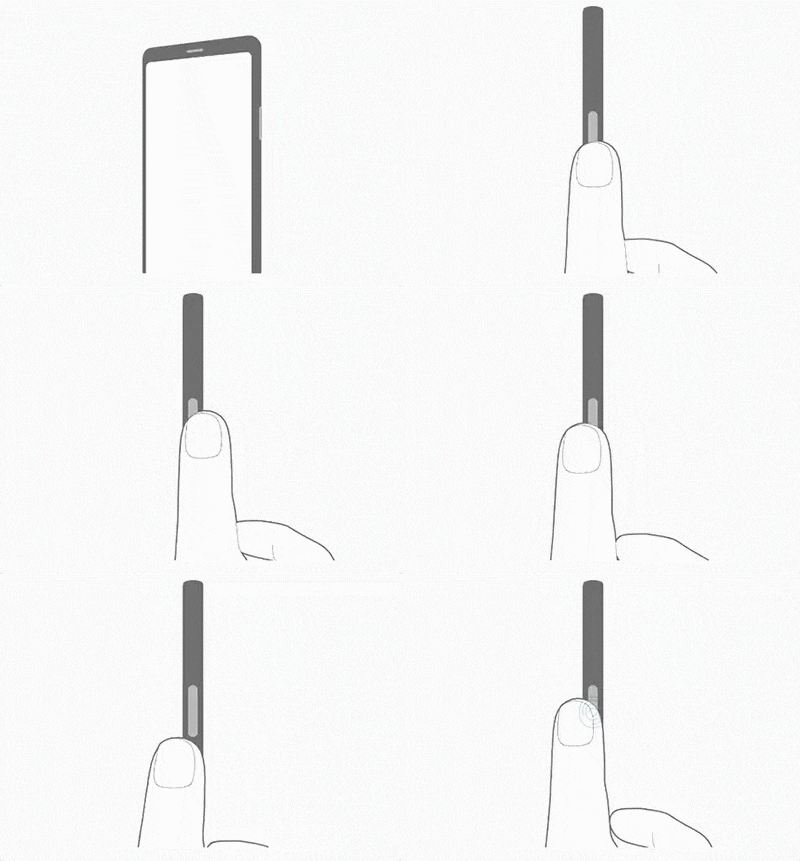
Follow the steps below to register your fingerprint:
Please note: The scanner may struggle to recognise your fingers if they are too wet or too dry, for example in very cold weather conditions. Ensure that the fingerprint sensor area is not scratched or damaged by metal objects such as coins, keys, pens and necklaces.
To change the screen lock type and deactivate the fingerprint scan, follow the steps below:
To remove your registered fingerprint data, follow the below steps:
Please note: The scanner may struggle to recognise your fingers if they are too wet or too dry, for example in very cold weather conditions. Ensure that the fingerprint sensor area is not scratched or damaged by metal objects such as coins, keys, pens and necklaces. Press the screen so that your fingertip spreads over the wide surface of the fingerprint recognition area.
If the above information does not match what your product is showing, you may check the User Manual for your product. If you are unable to solve the problem, please contact us for further assistance.
Thank you for your feedback!
Please answer all questions.
RC01_Static Content : This text is only displayed on the editor page