Gear IconX (Hong-Kong version): How do I Connect Earbuds to a Mobile device?
Important Note: The information on this page is for Hong Kong products only. Models, sequences or settings will vary depending on location and/or where the product had been purchased. To be redirected to your local support page please click here.
To connect your earbuds to a mobile device, please install the Samsung Gear app onto your mobile device.
The Earbuds
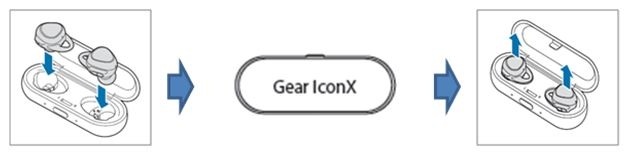
• If there are other Gear device(s) paired to your mobile device, please follow the steps in this FAQ.
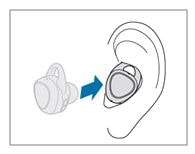
Your Mobile Device
Notes:
• If the Bluetooth connection fails or the other device cannot locate the earbuds, please remove Gear IconX’s information from the other device’s list. Then, try to connect again.
• Connection methods may vary depending on your device and software version.
• If the earbuds do not connect to your mobile device within 3 minutes, the Bluetooth pairing mode will be deactivated. To enter Bluetooth pairing mode again, please repeat the above Earbuds steps by inserting the earbuds into the charging case and closing it. Then, put the earbuds into your ears.
• If applicable, update the Samsung Gear app to the latest version
• Depending on your device, you can download the Samsung Gear app. from the following app. stores:
• Samsung Android devices: Galaxy Apps or apps.samsung.com/gear
• Other Android devices: Play Store or apps.samsung.com/gear
You can download the Samsung Gear app. only on mobile devices running Android operating system 4.4 (API 19) or later, and with 1.5 GB of RAM or more.
If the above information does not match what your product is showing, you may check the User Manual for your product. If you are unable to solve the problem, please contact us for further assistance.
Thank you for your feedback!
Please answer all questions.
RC01_Static Content : This text is only displayed on the editor page