[Windows 10 Version 1703, 1607 & 1511] Initial Setup after Reset on my PC (Hong-Kong version)
Important Note: The information on this page is for Hong Kong products only. Models, sequences or settings will vary depending on location and/or where the product had been purchased. To be redirected to your local support page please click here.
This is how to set up your computer for the first time after resetting Windows 10 (ver. 1703).

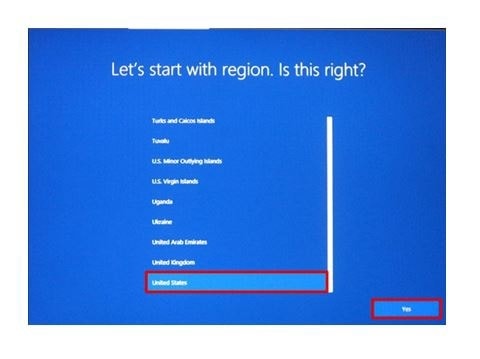
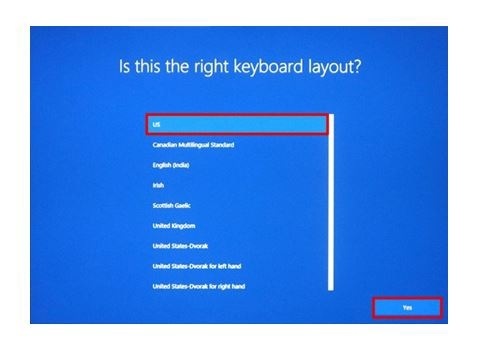
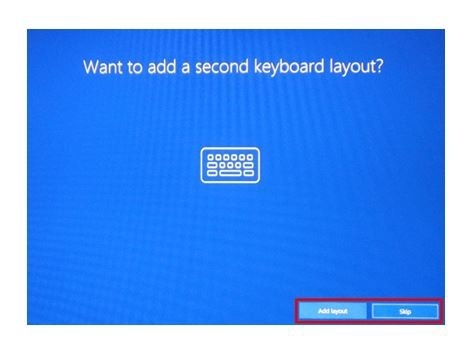
![Read the licensing agreement, then click [I agree], initial setup, after resetting, after reset, samsung computer, pc, notebook,](http://images.samsung.com/is/image/samsung/assets/hk_en/support/computing/windows-10-version-1703-1607-and-1511-initial-setup-after-reset-on-my-pc-hong-kong-version-/5.jpg?$ORIGIN_JPG$)
※ You can use [Skip for now] to perform this step later.
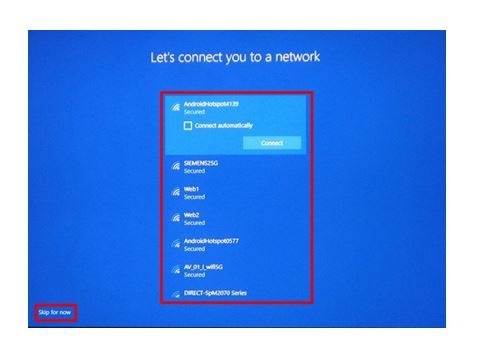
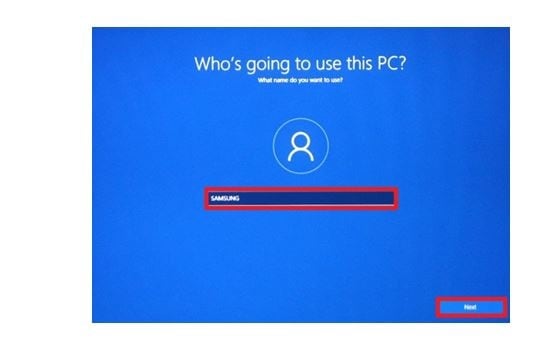
※ If you click [Next] without entering a password, you can proceed without setting a password. You can set a password later if you wish.
![Choose the password for your PC, If you click [Next] without entering a password, you can proceed without setting a password. You can set a password later if you wish](http://images.samsung.com/is/image/samsung/assets/hk_en/support/computing/windows-10-version-1703-1607-and-1511-initial-setup-after-reset-on-my-pc-hong-kong-version-/8.jpg?$ORIGIN_JPG$)
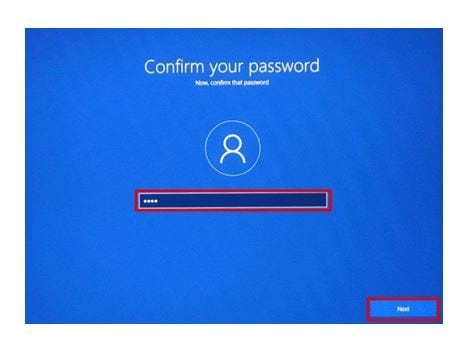
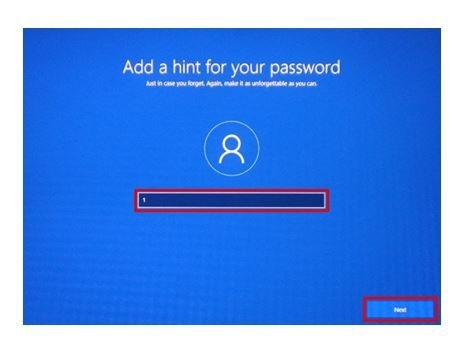
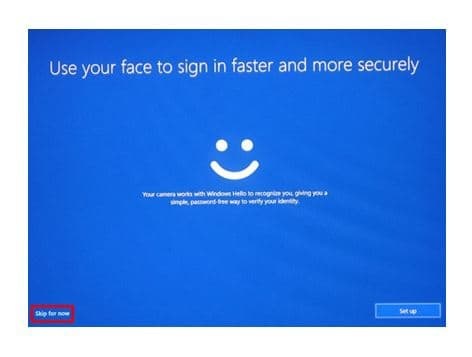
※ You can use [Skip for now] to perform this step later.
![Under [Choose privacy settings for your device], click [Accept] to complete setup, samsung computer, pc, notebook, win 10](http://images.samsung.com/is/image/samsung/assets/hk_en/support/computing/windows-10-version-1703-1607-and-1511-initial-setup-after-reset-on-my-pc-hong-kong-version-/002.jpg?$ORIGIN_JPG$)
- The above product description is only applicable to Windows 10 (Version 1703) released on Samsung computers (Hong-Kong version) in year 2018. The above product description was updated in June 2018 and for reference only.
- Windows is either registered trademark or trademark of Microsoft Corporation in the United States and/or other countries. All other products and services mentioned may belong to their respective trademark owners.
- All images are for reference only.
This is how to set up your computer for the first time after resetting Windows 10 (ver. 1607).
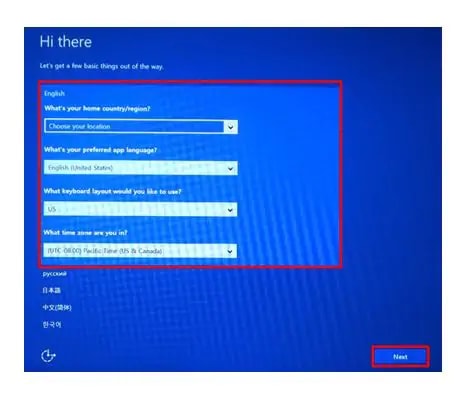
![Read the legal disclaimer, then click the [Apply] button, initial setup, samsung pc, computer, notebook, win 10, windows 10](http://images.samsung.com/is/image/samsung/assets/hk_en/support/computing/windows-10-version-1703-1607-and-1511-initial-setup-after-reset-on-my-pc-hong-kong-version-/22.jpg?$ORIGIN_JPG$)
※ Use [Skip this step] to set this up later.
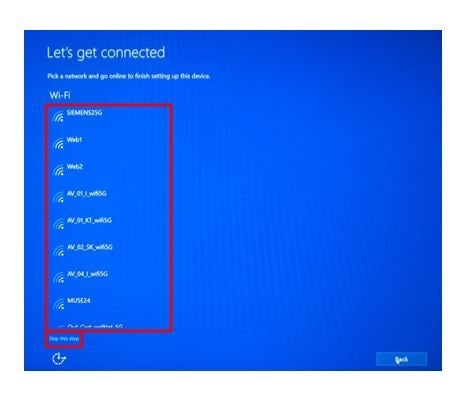
Go to [Customize] to perform additional setup if desired.
![Select [Use Express settings] in the [Quick Start] window, win 10, windows 10, samsung computer, pc, notebook](http://images.samsung.com/is/image/samsung/assets/hk_en/support/computing/windows-10-version-1703-1607-and-1511-initial-setup-after-reset-on-my-pc-hong-kong-version-/44.jpg?$ORIGIN_JPG$)
![In [Create an account for this PC], enter a user name and password, then click [Next], initial setup, win 10, windows 10, samsung computers, pc, notebook](http://images.samsung.com/is/image/samsung/assets/hk_en/support/computing/windows-10-version-1703-1607-and-1511-initial-setup-after-reset-on-my-pc-hong-kong-version-/55.jpg?$ORIGIN_JPG$)
※ After booting is complete, you will see several introduction screens.
It may take some time, but please wait and the system will boot automatically.
- The above product description is only applicable to Windows 10 (Version 1607) released on Samsung computers (Hong-Kong version) in year 2018. The above product description was updated in June 2018 and for reference only.
- Windows is either registered trademark or trademark of Microsoft Corporation in the United States and/or other countries. All other products and services mentioned may belong to their respective trademark owners.
- All images are for reference only.
This is how to set up your computer for the first time after resetting Windows 10 (ver. 1511).
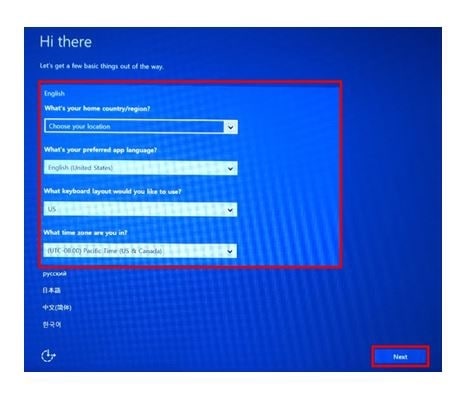
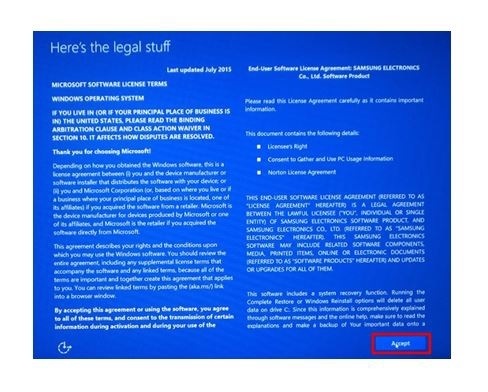
※ Use [Skip this step] to set this up later.
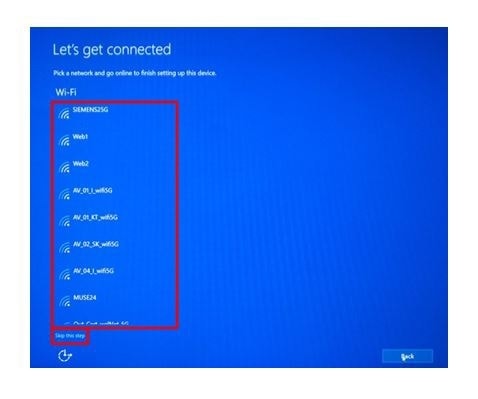
Go to [Customize] to perform additional setup if desired.
![Select [Use Express settings] in the [Quick Start] window, initial setup, win 10, windows 10, samsung pc, samsung notebook, computer, desktop](http://images.samsung.com/is/image/samsung/assets/hk_en/support/computing/windows-10-version-1703-1607-and-1511-initial-setup-after-reset-on-my-pc-hong-kong-version-/04.jpg?$ORIGIN_JPG$)
![In [Create an account for this PC], enter a user name and password, then click [Next], create an account for this pc, win 10, windows 10, samsung notebook, oc, computer, samsung desktop, desk](http://images.samsung.com/is/image/samsung/assets/hk_en/support/computing/windows-10-version-1703-1607-and-1511-initial-setup-after-reset-on-my-pc-hong-kong-version-/05.jpg?$ORIGIN_JPG$)
※ After booting is complete, you will see several introduction screens.
It may take some time, but please wait and the system will boot automatically.
- The above product description is only applicable to Windows 10 (Version 1511) on Samsung computers (Hong-Kong version) in year 2018. The above product description was updated in June 2018 and for reference only.
- Windows is either registered trademark or trademark of Microsoft Corporation in the United States and/or other countries. All other products and services mentioned may belong to their respective trademark owners.
- All images are for reference only.
If the above information does not match what your product is showing, you may check the User Manual for your product. If you are unable to solve the problem, please contact us for further assistance.
Thank you for your feedback!
Please answer all questions.
RC01_Static Content : This text is only displayed on the editor page